
Choose which notifications you receive
Your roles decide which kinds of notifications are available to you. Within those, you choose which ones you receive and whether you also get an email or a browser notification. Your choices affect only you.
Change your notification choices
Section titled “Change your notification choices”-
Open your profile menu in the portal and choose My Profile.
-
Find the Notifications section. Notifications are grouped under their category, such as Billing.
-
For each notification, choose:
- Default to follow the notification’s own setting. The button shows what the default is, for example Default (On).
- On to always receive it.
- Off to stop receiving it.
-
For a notification you receive, turn Email me a copy on or off.
-
Turn Push notification on if you also want it sent to browsers where notifications are on.
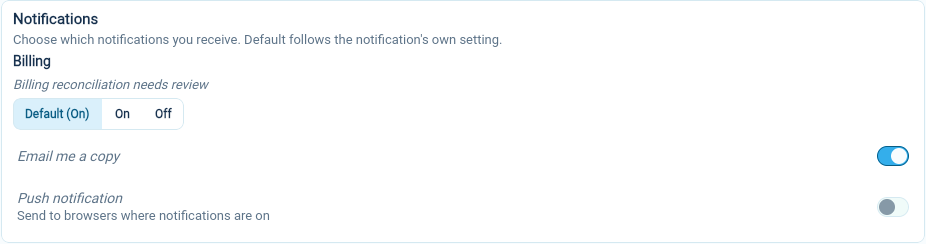
Each choice is saved as soon as you make it.
Turn on notifications in this browser
Section titled “Turn on notifications in this browser”Push notifications reach only browsers where you have turned them on. In Browser notifications on the same page, choose Turn on and allow notifications when your browser asks. Choose Turn off to stop them in this browser. If the section says notifications are blocked, change the permission in your browser’s site settings.
If a notification is missing
Section titled “If a notification is missing”The Notifications section lists only notifications from categories that one of your roles turns on. Categories that none of your roles turns on are named at the end, for example “Not turned on by your roles: Billing. Ask an administrator.”
Turning a notification on cannot add you to its audience. For example, billing reviews go only to people whose role has the Billing category on and includes View billing. If you need a notification for your work, ask an administrator to review your roles. See Turn on notification categories for a role.