
Update your profile and photo
Use My Profile to keep your own contact details and picture current. Open your profile menu in the portal and choose My Profile.
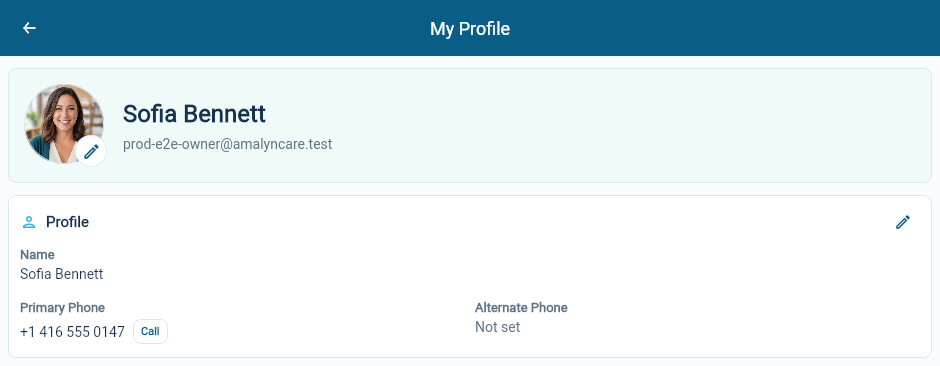
Update your name or phone numbers
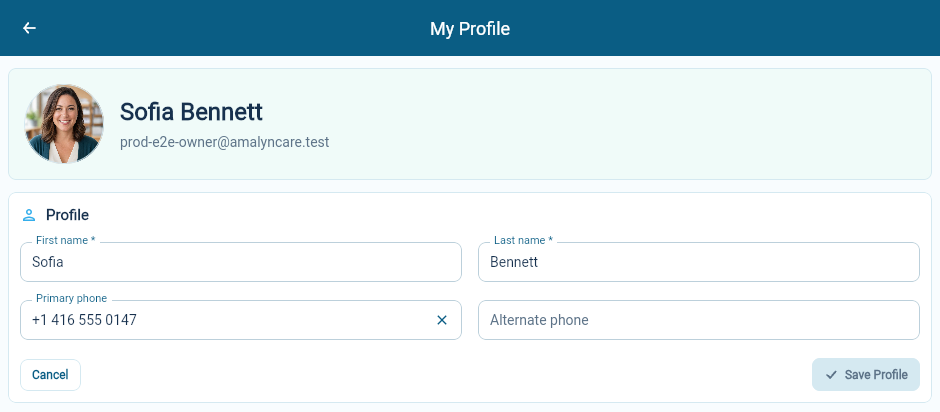
Section titled “Update your name or phone numbers”- Choose the pencil beside Profile.
- Update your first name, last name, primary phone or alternate phone.
- Choose Save Profile.
- Check the saved information.
Include the correct country calling code when entering a phone number. An alternate number is useful only if it gives your team another reliable way to reach you.
Choose Cancel if you do not want to keep the edits you have started.
Add or change your photo
Section titled “Add or change your photo”Choose the photo control beside your name. Select an image, check the preview and choose OK to save it. Use a clear picture that is easy for colleagues to recognize in a small circle.
You can replace or remove an existing picture through the same control.
Choose your notifications
Section titled “Choose your notifications”My Profile also holds your notification choices. See Choose which notifications you receive.
What belongs elsewhere
Section titled “What belongs elsewhere”Your sign-in email is shown on the profile, but this form does not offer an email change. Ask your organization administrator for help if it is wrong.
Your position, employment dates and roles are managed in your staff record. The organization’s office email and logo belong in Organization Settings.
If you cannot edit your profile
Section titled “If you cannot edit your profile”Confirm that you are signed into the expected organization and account. If the profile is missing or does not belong to you, stop editing and ask an Owner to check your staff account.