
Find a child missing from the attendance roster
The daily roster depends on the selected site, group and date, along with the child’s enrollment schedule. A child having a profile in Children is only one part of that setup.
Work through these checks before adding another record for the same child.
Check the roster selection
Section titled “Check the roster selection”Open Attendance and confirm the Site and Group. Choose the intended Date, select Refresh, then check the date under Daily Roster.
If the child attends another group, choose that group and refresh again.
Check the enrollment
Section titled “Check the enrollment”Open Children & Families → Enrollments and find the child’s enrollment. Confirm:
- Site and Group match the roster you opened.
- Status is Confirmed.
- The date falls within the enrollment’s Admission Date and Graduation Date, if a graduation date is set.
- Attendance Schedule includes that weekday in the period covering the date.
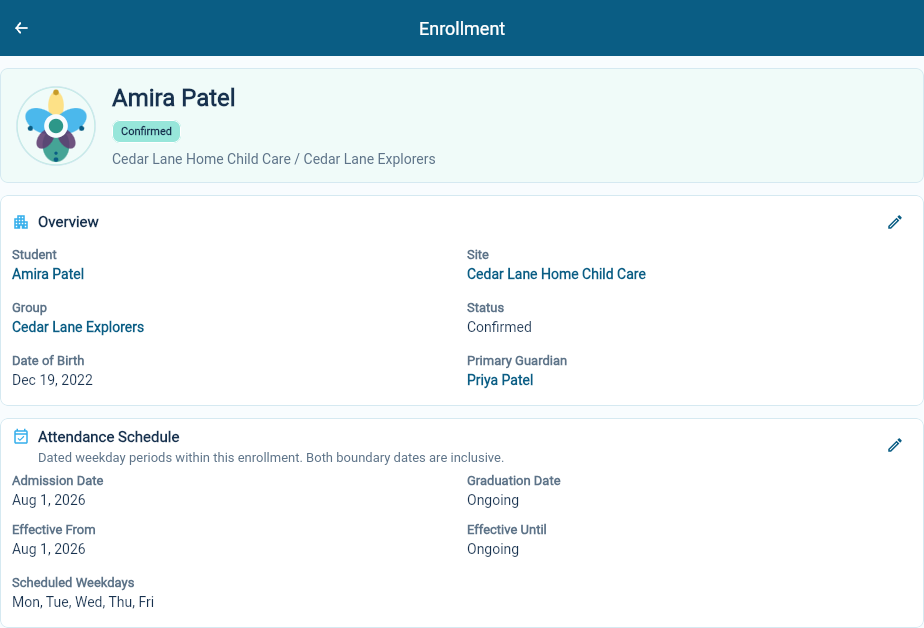
A schedule can change over time. For example, a child attending Mondays, Wednesdays and Fridays will not appear as planned for Tuesday merely because the enrollment is ongoing. Check the schedule period covering the day you are reviewing.
Correct the existing enrollment when the saved arrangement is wrong. See manage an enrollment for the relevant record.
Check whether the day is closed
Section titled “Check whether the day is closed”A closed day can still show roster names, but attendance actions are unavailable. The closure message is the clue to check the site’s operating calendar.
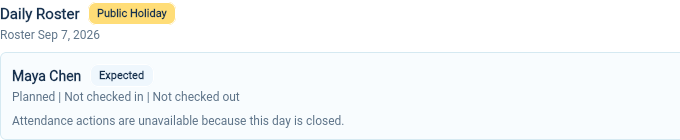
Review the operating calendar before changing a closure. It may be an intentional public holiday or site closure.
Check access
Section titled “Check access”If an entire site is missing, ask your organization administrator to review your site access. Access to one location does not establish access to every child’s records.
Once the roster is correct, continue with check-in and checkout.