
Assign, change and end roles
A staff member’s roles are managed on their staff profile, in Roles And Sites. Each row is one role assignment: the role, where it applies, and badges such as On the Site team or Home Operator. You can add roles, change the Sites of existing ones and end roles, then save them together.
Before you begin
Section titled “Before you begin”You need the Manage access roles permission to assign, change or end roles. This applies to every role, including roles that only put someone on a Site’s team. You also need View staff to open staff profiles.
The role must already exist and must not be archived. Create and edit a role if the job is not in the list yet.
Where a role can apply
Section titled “Where a role can apply”You choose where each assignment applies, whatever the role contains:
| Choice | Where the role’s Operational permissions and On the Site team apply |
|---|---|
| Selected Sites | Only the Sites you choose |
| All Sites | Every Site, including Sites added later |
| No Sites | Nowhere; only the role’s Organization permissions take effect |
No Sites suits a role with only Organization permissions, such as Accountant. A role with Operational permissions or On the Site team can also be given with No Sites. It then gives no access at any Site and puts the person on no team until you choose Sites.
A role with Home operation is the exception: it always applies at exactly one home.
Organization permissions always apply across the whole organization, whichever option you choose.
Add a role
Section titled “Add a role”-
Open Staff → Staff Directory and select the staff member.
-
Choose the pencil beside Roles And Sites.
-
Choose Add role.
-
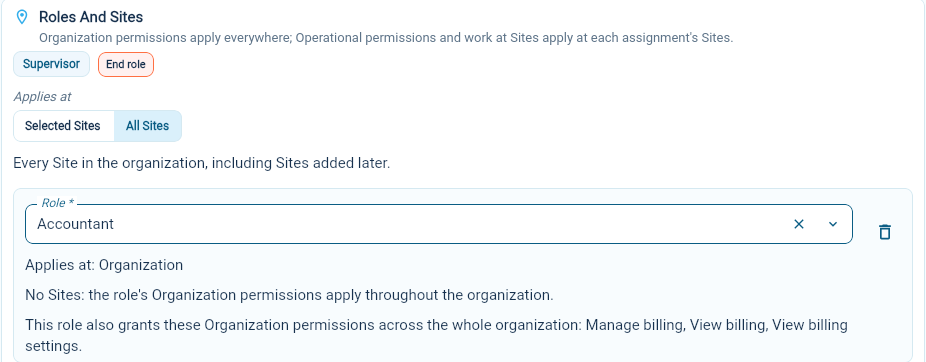
In Role, search for and select the role. Each option summarizes what the role contains.
-
Choose where it applies under Applies at: No Sites, Selected Sites or All Sites. For Selected Sites, choose at least one Site in Sites. For a role with home operation, choose the Home instead.
-
Read the note under the choice. It lists the Organization permissions the role also grants across the whole organization.
-
Choose Save Roles and Sites.
The new row appears in Roles And Sites with its Sites. If the staff member’s permissions changed, they are signed out and get the new permissions when they sign in again.
A role with home operation makes the staff member that home’s Home Operator. If the home already has one, the previous Home Operator leaves the home. To keep them at the home with another role, use Replace on the home’s page instead. See Assign or replace a Home Operator.
Change where a role applies
Section titled “Change where a role applies”- Choose the pencil beside Roles And Sites.
- For the role you want to change, choose No Sites, Selected Sites or All Sites under Applies at.
- For Selected Sites, add or remove Sites in Sites.
- Choose Save Roles and Sites.
Changing to No Sites removes what this assignment provides at Sites, its Operational permissions and team membership, while its Organization permissions stay. The staff member’s other roles are unchanged. Changing from No Sites to Sites adds them at the Sites you choose.
Roles with home operation keep their home. To move a Home Operator to another home, replace the Home Operator at each home instead.
End a role
Section titled “End a role”- Choose the pencil beside Roles And Sites.
- Choose End role beside the role. The row shows Ends when saved; choose Keep role if you change your mind.
- Choose Save Roles and Sites, then Save and end in the confirmation.
Ending removes only what that assignment provided. The staff member keeps their other roles, and the ended assignment stays in the role’s history.
A home’s Home Operator role cannot be ended on its own because an active home needs a Home Operator. Replace them from the home first.
Assign roles when creating a staff member
Section titled “Assign roles when creating a staff member”When you choose Create Staff, the form includes an optional Roles And Sites section. Choose Assign role, select the role and where it applies, then choose Assign. Repeat for each role, then create the staff member. You can also assign roles later from the profile.
Check what someone can do
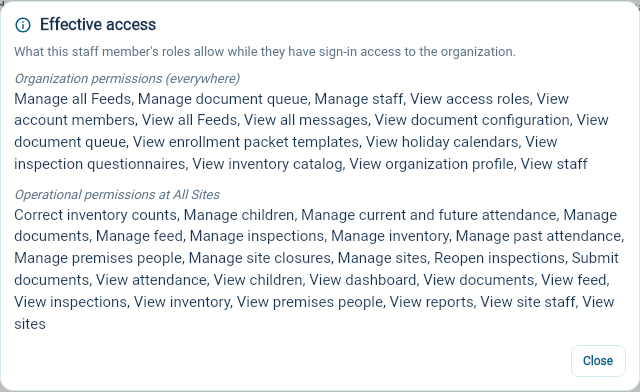
Section titled “Check what someone can do”Open the menu on Roles And Sites and choose Effective access. It lists the staff member’s Organization permissions (everywhere) and their Operational permissions at each Site, combined from all their roles. You need View access roles to see it.
Things to know
Section titled “Things to know”- The Owner role shows Follows Owner membership. It cannot be ended here; change it on the Owners page.
- Roles can be assigned only at open Sites.
- A staff member whose employment has ended cannot be given roles. When their termination date arrives, all their roles end. A Home Operator must be replaced at their home before their employment can end or their employment type can change.
- Changing your own roles signs you out, so your new permissions load when you sign in again.