
Set up programs, groups and classrooms
A program describes a care offering at one site. A group brings children together within that program. A classroom gives a group a named room when you need one.
Create the site first, then work through Organization Settings → Site Setup.
Create a program
Section titled “Create a program”Open Programs and choose Create Program. Select its site, enter a clear name, and complete the schedule and enrollment details.
Check the program dates, operating weekdays and hours. Add the age range and capacity that describe your offering. Review any enrollment modes or waitlist setting you use.
After saving, the program viewer separates its details into sections so you can update one part at a time.
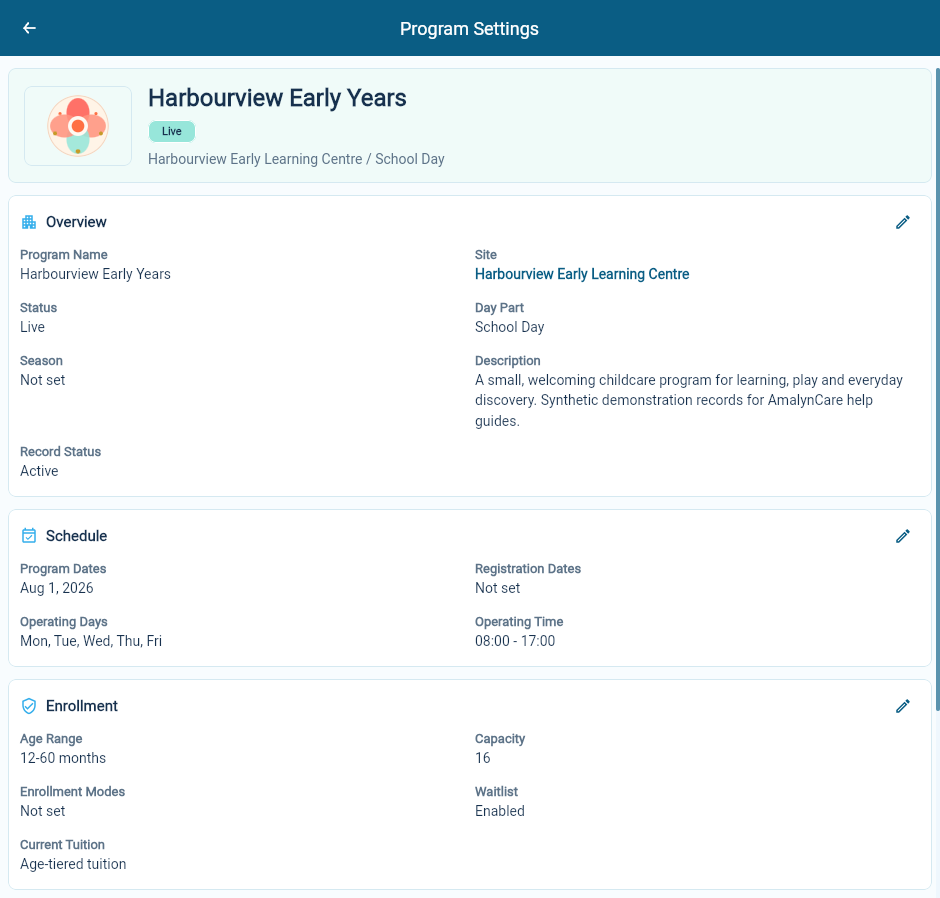
Dates and hours should match the care you are offering families. A capacity value describes the program setup; it is not a staffing or regulatory assessment.
Connect the application and billing rules
Section titled “Connect the application and billing rules”The program’s Enrollment Application Template section selects the questions used for new applications to that program. Choose the intended template and check its displayed version.
Tuition and the Service Day Policy are maintained in their own sections. Review them before approving applications or preparing bills.
Set up application questions and prepare tuition rates.
Set the default invoice schedule
Section titled “Set the default invoice schedule”In the Program’s Invoice Schedule section, choose Configure Invoice Schedule. Select the Program default invoice schedule, its Invoice schedule anchor date and any Permitted Enrollment invoice schedules, then choose Save Invoice Schedule.
If the schedule is not available, create it under Organization Settings → Billing → Billing Cycle Policies first. A monthly or biweekly schedule controls when care is invoiced; it does not change the agreed price for the same care.
Use Edit Invoice Schedule to change the Program’s defaults for future selections. Existing Enrollments keep their agreed timing until a permitted future change is reviewed explicitly.
Add classrooms where needed
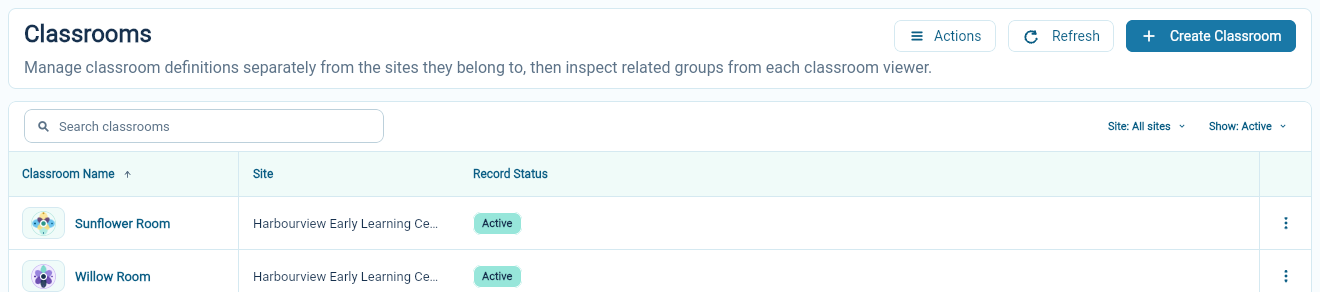
Section titled “Add classrooms where needed”Open Classrooms and choose Create Classroom. Select the site and enter the room name. Saving the classroom makes it available for the groups that belong there.
For example, a centre might use Sunflower Room and Willow Room. A home site may not need classroom records.
Create a group
Section titled “Create a group”Open Groups and choose Create Group. Choose the site and program, name the group, and set its status and dates. Assign a classroom if appropriate.
Check the saved group before using it in an application or enrollment. Confirm that it belongs to the intended site and program and, if you assigned one, the correct classroom.
Keep old records understandable
Section titled “Keep old records understandable”Use clear names instead of reusing an old group for an unrelated purpose. Setup records offer archive controls, and list filters can show archived records when you need to find them again.