
Create, review and approve an application
Open Children & Families → Applications to find applications in progress. Search by family or child details and use the status filter to focus on the stage you are working on.
Start a draft
Section titled “Start a draft”Choose Create Application. Enter the proposed placement and the child and parent information you have, then save the draft.
Open the saved application to check its site, program, group, dates and weekdays. Choose Edit Application when you need to continue filling it in.
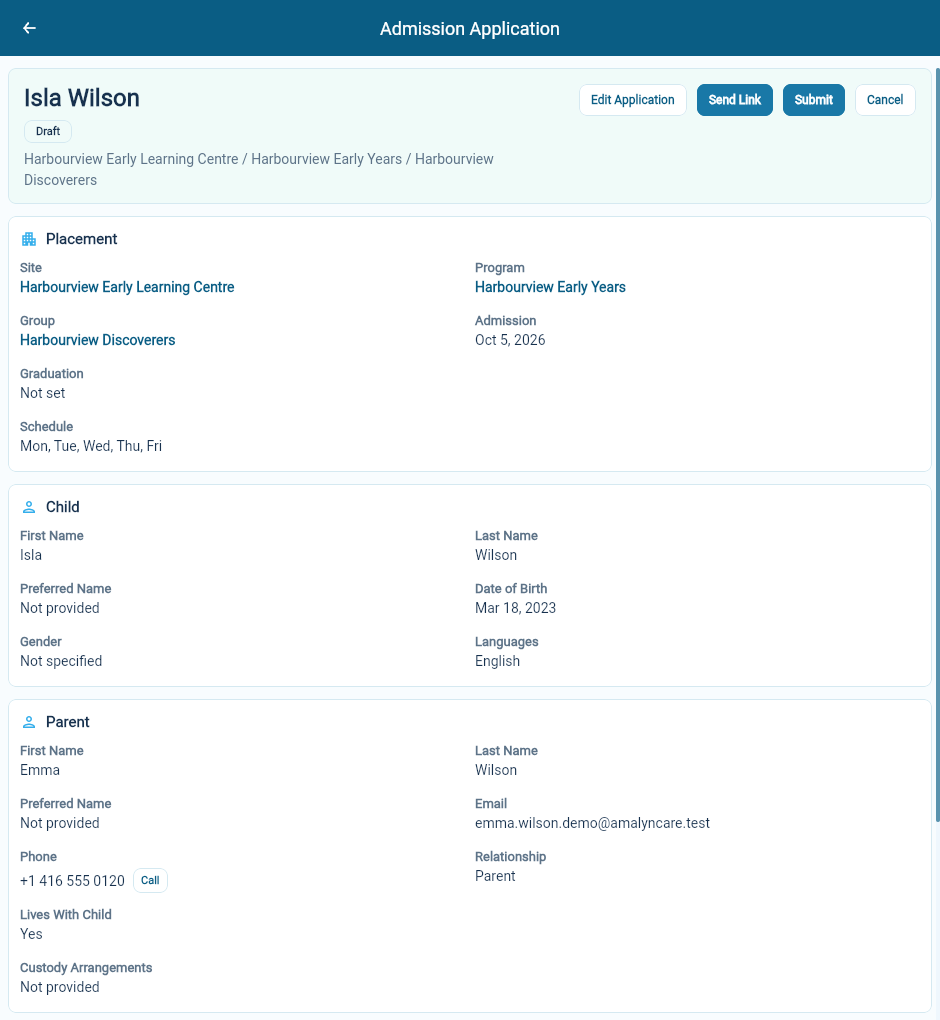
A draft does not mean the application has been submitted or the child has been enrolled.
Submit the application for review
Section titled “Submit the application for review”Choose Submit when the information is ready. If the portal identifies missing required details, complete them before trying again.
Check the resulting status. Submitted means the application is awaiting the approval decision. It does not yet mean Approved.
Review before approving
Section titled “Review before approving”Read the placement, child, parent/contact and consent information. Resolve questions about dates, weekdays, contacts or the program before approving.
Review the Program’s default invoice schedule or an allowed alternative, as well as any tuition-guarantee choice, before approving. Understand tuition rates and guarantees.
When the Program has a deposit policy, the approval also asks for the child’s deposit. Check the Agreed amount in Enrollment deposit, which starts with the policy’s default. Set up deposits with a deposit policy.
Choose Approve when you are ready, then check that the status is Approved and open the linked enrollment. You need admissions editing access to approve. Choosing an alternative invoice schedule or a tuition guarantee also requires billing access.
Approval creates the Enrollment with its reviewed invoice schedule. A person with billing access must review and run its first invoice separately.
When the application will not proceed
Section titled “When the application will not proceed”The available actions depend on its current status. A submitted application offers Reject; editable drafts offer Cancel. Use the Action Note where appropriate to leave a clear reason.
Read the status after the action. Cancelling an application and ending an existing enrollment are different tasks.
For children already enrolled, use Manage enrollments.