
Download a completed inspection
Download an inspection when you need a copy to review, print or share through your program’s usual process. The PDF includes the site, inspection date, template version, answers and notes.
The inspection must be marked Done before it can be exported.
Download the PDF
Section titled “Download the PDF”- Open Site Operations → Inspections.
- Find the inspection by its site and date. Use the Status filter to narrow the list to completed inspections if helpful.
- Open the record and check that its status is Done.
- Select Download PDF.
- Open the downloaded file and check its site, date and answers before using it.
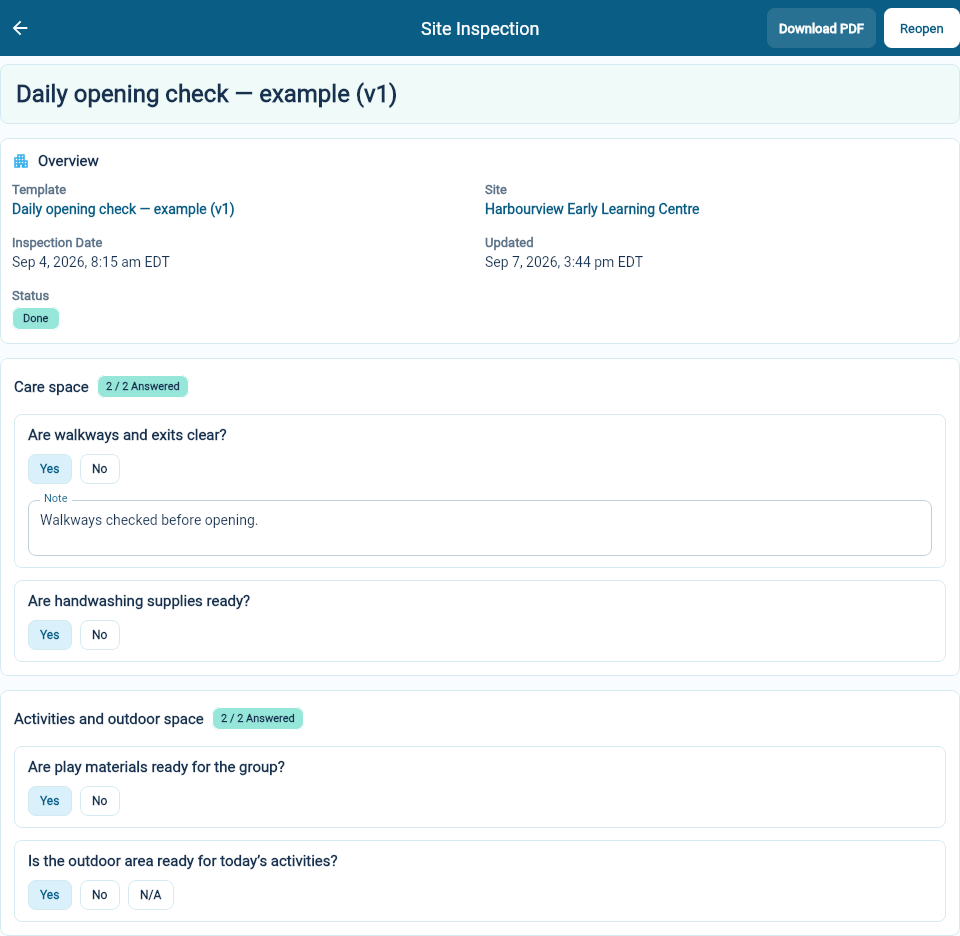
The report identifies when it was generated as well as when the inspection took place. Those dates can differ when you download a copy later.
If Download PDF is missing
Section titled “If Download PDF is missing”An open inspection must be finished first. Review its answers, select Save for any changes, then select Done. See complete a site inspection.
If you correct the inspection later
Section titled “If you correct the inspection later”Follow the steps to correct a completed inspection. Reopening requires the appropriate permission. Download a fresh PDF so the copy you use reflects the corrected record. A file you downloaded earlier remains that earlier copy.
The template version in the report identifies the checklist used for this inspection. For changes to future checklists, edit the inspection template.