
Create and maintain staff records
Open Staff → Staff Directory for your organization’s staff directory. Use it to find a colleague or maintain their employment and contact information.
People with the View staff permission can see the directory across the organization, even when their own work is limited to particular Sites.
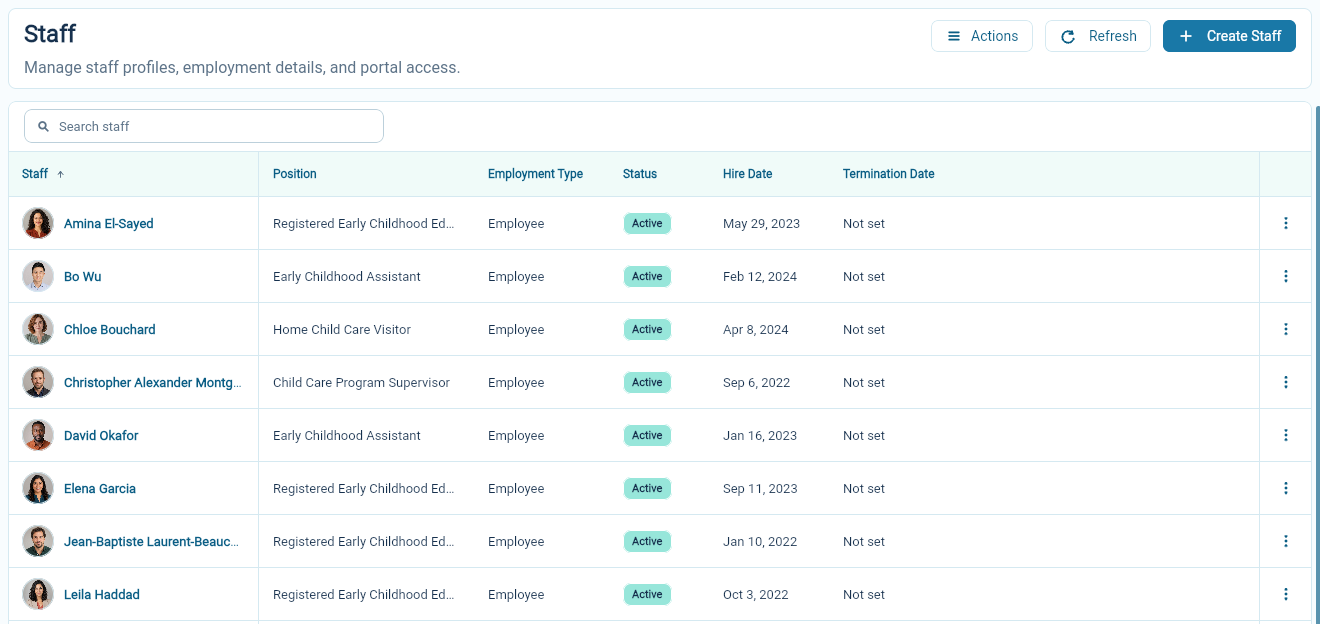
Add a staff member
Section titled “Add a staff member”Search for the person first to avoid a duplicate. If they are new, choose Create Staff and complete the name, email, temporary password and other required information.
Check the email carefully because the person signs in with it, using the temporary password until they choose their own. Complete the employment details you have.
If you can manage roles, the form also has an optional Roles And Sites section. Choose Assign role to give the person their roles now, or assign them later from the profile. Choose Create Staff, then open the new record to review it.
What the person can do, and which Site teams they join, depends on their roles. See Assign, change and end roles.
Keep the profile current
Section titled “Keep the profile current”Use the Profile pencil for the name and phone details available in that section. Use the photo control to add or update a picture.
Staff can maintain their own personal details through My Profile. Employment details are maintained by people authorized to manage staff, and roles by people who can manage roles.
Maintain employment information
Section titled “Maintain employment information”Use the Employment pencil to review the employment type, position, hire date and termination date. Check the resulting employment status after saving.
The status can distinguish a scheduled start, active employment and terminated employment. Keep the dates accurate so the record describes the person’s actual working arrangement.
File staff documents
Section titled “File staff documents”The record’s Documents section links to stored files and signing activity for that staff member. Use a clear document title so colleagues can tell what the file contains without downloading it.
For example, the demonstration record includes an orientation checklist. Find and file documents.
When someone changes jobs or leaves
Section titled “When someone changes jobs or leaves”Review employment information and Roles And Sites together. A change in position may need a different role or different Sites.
When a staff member’s termination date arrives, all their roles end. A Home Operator must first be replaced at their home; until then, AmalynCare refuses to end their employment or change their employment type. See Assign or replace a Home Operator.