
Track family enquiries and visits
Use Children & Families → Inquiries for families who are asking about care. An inquiry keeps the conversation together before there is a confirmed enrollment.
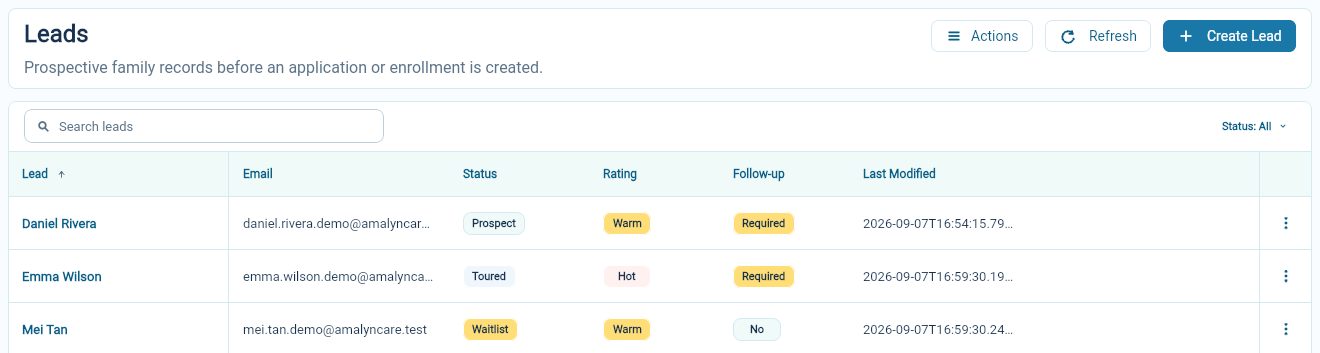
Create an enquiry
Section titled “Create an enquiry”Choose Create Inquiry and enter the parent’s name and contact details. Select the site or sites they are interested in, then add useful notes about the care they are looking for.
A good note gives the next person something to act on: the desired start date, preferred days, questions to answer or a suitable time to call.
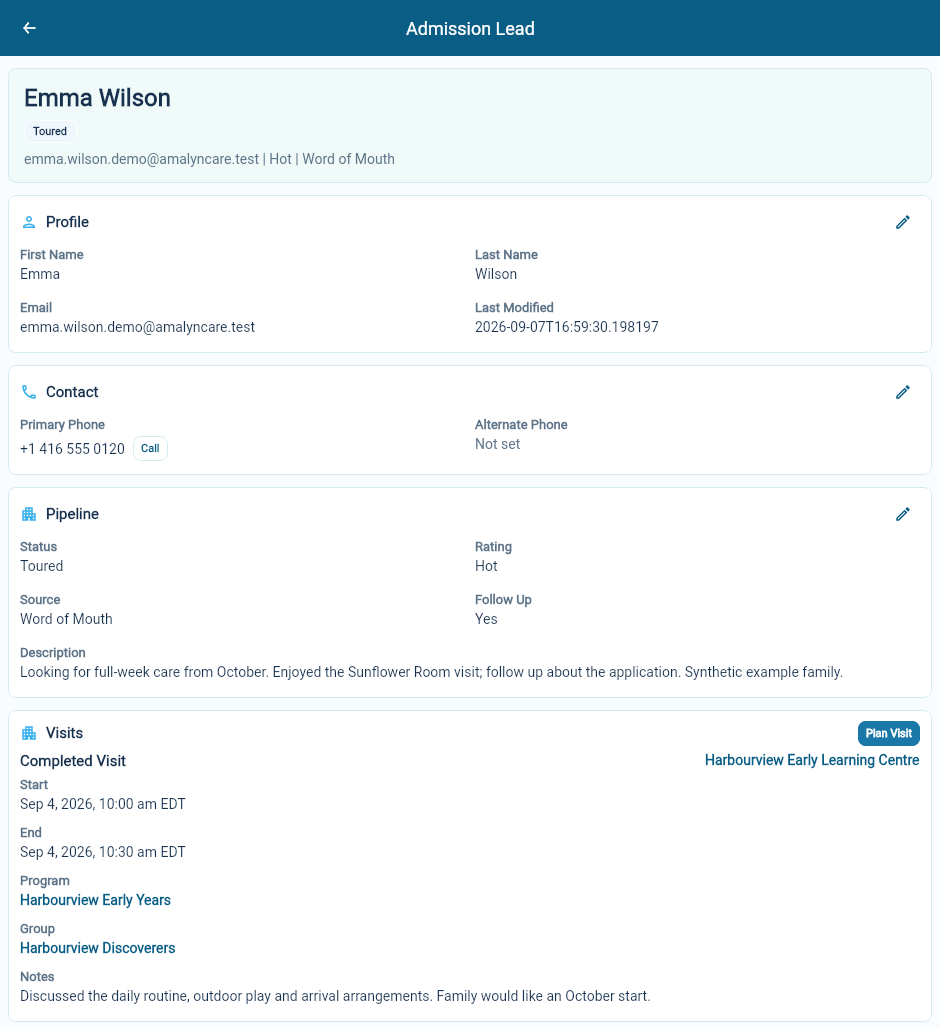
The source records how the family heard about you. The rating describes their level of interest, while the follow-up flag marks whether another contact is needed.
Keep the pipeline current
Section titled “Keep the pipeline current”Open the inquiry and use the pencils beside Profile, Contact or Pipeline to update the relevant section.
The available inquiry statuses include Prospect, Toured, Applied, Waitlist and Converted. Use the status that reflects where the enquiry stands, and check it again after a visit or application.
An interest rating such as Hot or Warm is different from the status. A family can be keen to start while still waiting for a suitable place.
Plan a visit
Section titled “Plan a visit”Open the inquiry and choose Plan Visit. Select the location and, where relevant, the program or group. Enter the start time, optional end time and notes your team needs for the visit. Choose Save Visit.
Check the saved visit on the inquiry record. After the visit, keep its outcome and follow-up information current using the available visit controls.
Move the conversation forward
Section titled “Move the conversation forward”When the family is ready, prepare an application with the proposed site, program and schedule. Keep the existing enquiry in mind so you do not ask the family to repeat information already recorded.
Use the list’s search and status filter to find the enquiries you want to work through. A follow-up flag is a reminder for your team; check the record for the actual next step.