
Add or update a home or centre
Create a site for each home or centre where you provide care. Use a name your team will recognize in lists, applications and enrollments.
Open Organization Settings → Site Setup → Sites.
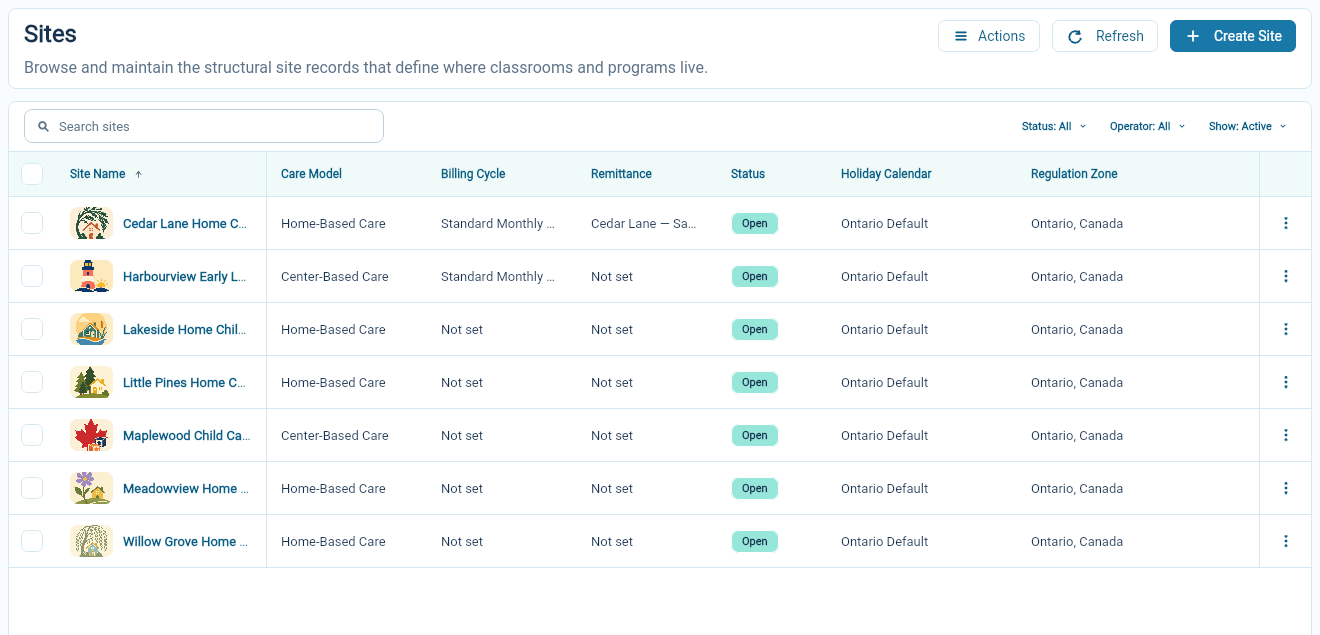
Create the site
Section titled “Create the site”For a home-based site, first check the Home Operator’s staff record. The Home Operator must have Active employment status, Independent Contractor employment type, and must not already operate another home. You also need a role with home operation.
- Choose Create Site.
- Enter the site name and choose its care model and status.
- For a home, choose the Home Operator and the Home Operator role.
- Complete the address and the setup sections shown for that care model.
- Check the regulation zone, holiday calendar and working days.
- Choose Create, then review the saved site.
Choose Home-Based Care for an individual home and Center-Based Care for a centre. The care model cannot be changed after the site is created.
The Home Operator becomes the home’s payee. A home without a Home Operator is created Closed and cannot be opened until one is assigned. To change the Home Operator later, or if the home was created without one, see Assign or replace a Home Operator.
Check the address
Section titled “Check the address”Enter the address people use to find the location, including the city, province or state, country and postal code. The site viewer shows the saved address and location coordinates.
If the address changes, update it through the Address pencil. Use Refresh location when you need the portal to update the mapped location, then check the result.
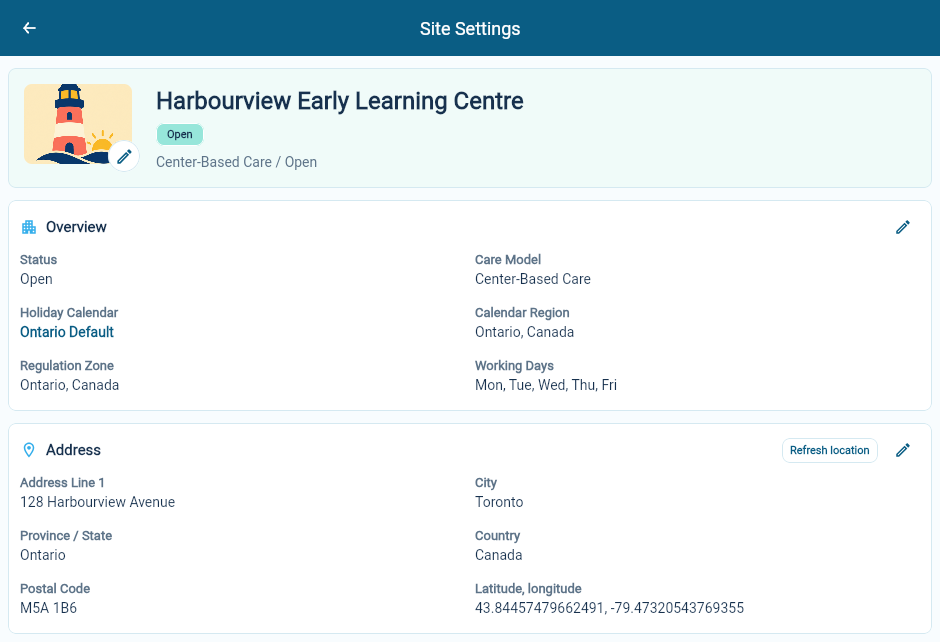
Keep the schedule and billing settings consistent
Section titled “Keep the schedule and billing settings consistent”Working days and the holiday calendar affect the site’s operating calendar. Review them before using the calendar for daily work.
Billing setup appears in separate sections on the site. A home also has its own remittance schedule and formula for amounts the agency owes for that Site. These settings deserve their own review; choosing a care model alone does not finish billing setup.
Set operating days and holidays and understand billing.
Set a home’s remittance schedule
Section titled “Set a home’s remittance schedule”Create the needed schedule under Organization Settings → Billing → Billing Cycle Policies and the formula under Site Remittance Policies.
- Open the home Site’s Site Remittance Schedule section and choose Set Remittance Schedule.
- Select the Site remittance schedule, Schedule anchor date and Site remittance formula.
- Review Effective from, then choose Schedule Terms Change to save the dated terms.
- Check the saved schedule, formula and effective date.
A Home-Based CWELCC formula requires an Ontario home and a monthly remittance schedule. Other formulas follow their own applicable rules.
Use Complete Remittance Setup when retained setup has missing terms. Use Schedule Terms Change for a later agreed change. Dates already committed by a financial run keep their captured terms.
The Site remittance schedule is independent of Program invoice schedules and tuition pricing. A centre needs Program invoicing setup; it does not need a Site remittance schedule.
Update or retire a site
Section titled “Update or retire a site”Open the site and use the pencil beside the section you want to change. Save that section and check the displayed result.
Status describes the site’s operating state. Archive removes a setup record from active lists while retaining it in archived records. Read the record-management message and consider existing programs and enrollments before archiving a site.
Use the list’s archive filter if you are trying to find a site that no longer appears among active records. Restoring a home that has no Home Operator asks for one; without one, the home is restored Closed.