
Update your organization details and logo
Your organization profile holds the name, office email and logo shared across the organization. You can find it under Organization Settings → Organization. The same page also sets how long notifications are kept.
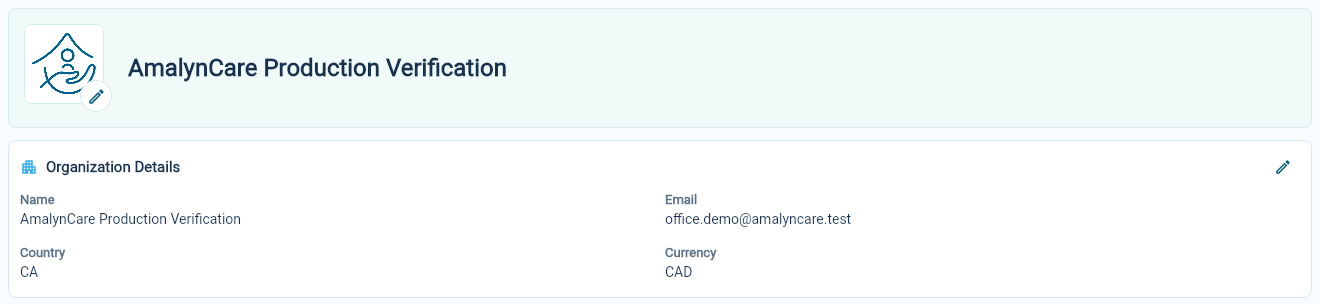
Change the name or office email
Section titled “Change the name or office email”- Open Organization.
- Choose the pencil beside Organization Details.
- Update the name or office email.
- Choose Save Organization Details.
- Check that the saved details are correct.
Use a recognizable organization name and an email address your office checks regularly. This email is separate from the email you use to sign in.
Country and currency are displayed here, but they are not editable in this form.
Add or replace the logo
Section titled “Add or replace the logo”Choose the image control beside your organization name. Select your logo file, check the preview and choose OK to save it. A simple logo with clear edges usually works well at the small sizes used in the portal.
If a logo is already present, the same control lets you change it. You can also remove the current logo.
Keep personal and site details in their own places
Section titled “Keep personal and site details in their own places”Update your own name, phone numbers and picture in My Profile. Update a centre or home’s address in Site Settings.
Changing the organization profile does not replace those individual records. After an office move or a change of contact details, check each affected site as well.
If the edit control is missing
Section titled “If the edit control is missing”Your account may allow you to view the organization without changing it. Ask an Owner to review your role. Understand portal access.