
Record stock received, used or corrected
Record a stock movement whenever supplies arrive, are used, or need a count correction. A short reason helps your team understand why the quantity changed.
Before you begin, make sure the item exists and that you have permission to change inventory at the site. This form records site stock; it does not let you choose a classroom or central-storage location.
Record a movement
Section titled “Record a movement”- Go to Inventory → Items and open the item.
- Open the edit control beside Record Movement.
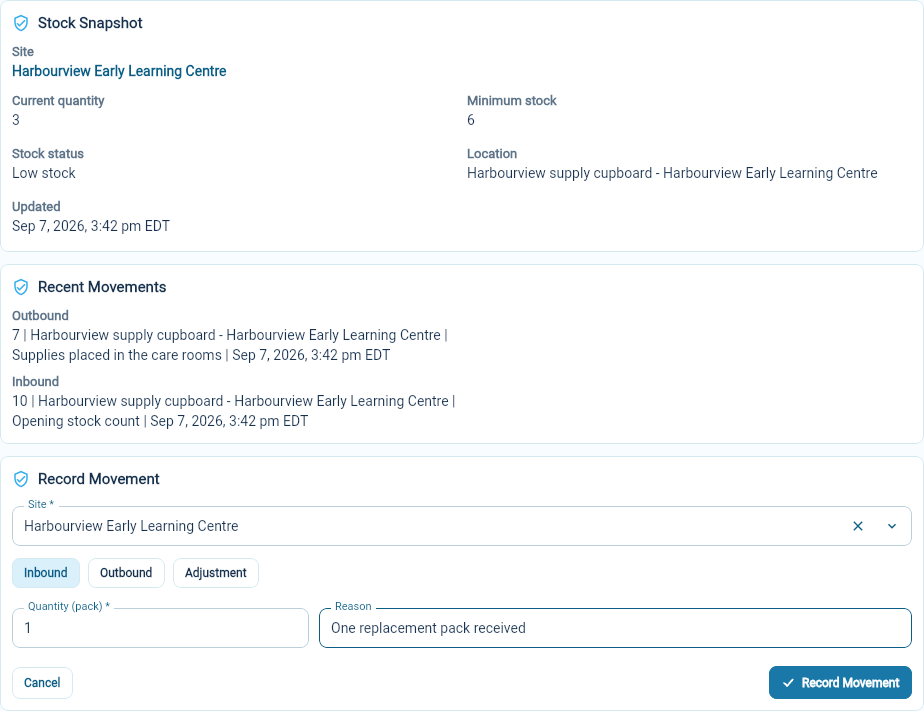
- Choose the Site. Check the Stock Snapshot, including its location and current quantity.
- Choose Inbound, Outbound or Adjustment.
- Enter the Quantity in the item’s unit and add a Reason.
- Select Record Movement.
- Review Stock Snapshot and Recent Movements to confirm the result.
Choose the right movement
Section titled “Choose the right movement”| Choice | Effect on the quantity | Example |
|---|---|---|
| Inbound | Adds the quantity entered | Receive 10 packs of paper towels. |
| Outbound | Subtracts the quantity entered | Use 7 packs, leaving 3 from an opening count of 10. |
| Adjustment | Adds the quantity entered | Add 1 pack found during a count. |
Enter a positive quantity for each choice. Adjustment adds stock; it does not set the balance to the number you enter. To reduce an overstated count, use Outbound for the difference and explain the count correction in Reason.
For example, if the record shows five packs and your count finds three, record two outbound with a reason such as “Count correction: three packs remaining”.
Review the history
Section titled “Review the history”Open Inventory → Movements for the movement list. Use its location filter to narrow the view. Filter loaded movements searches the rows already loaded in that view.
Check the location, quantity and reason when following up on an unexpected balance. Then review low stock to see which supplies are below their minimums.