
Create an inspection template
An inspection template is the checklist your team chooses when starting a site inspection. Set up the questions once, then use the template for separate visits or checks at your homes and centres.
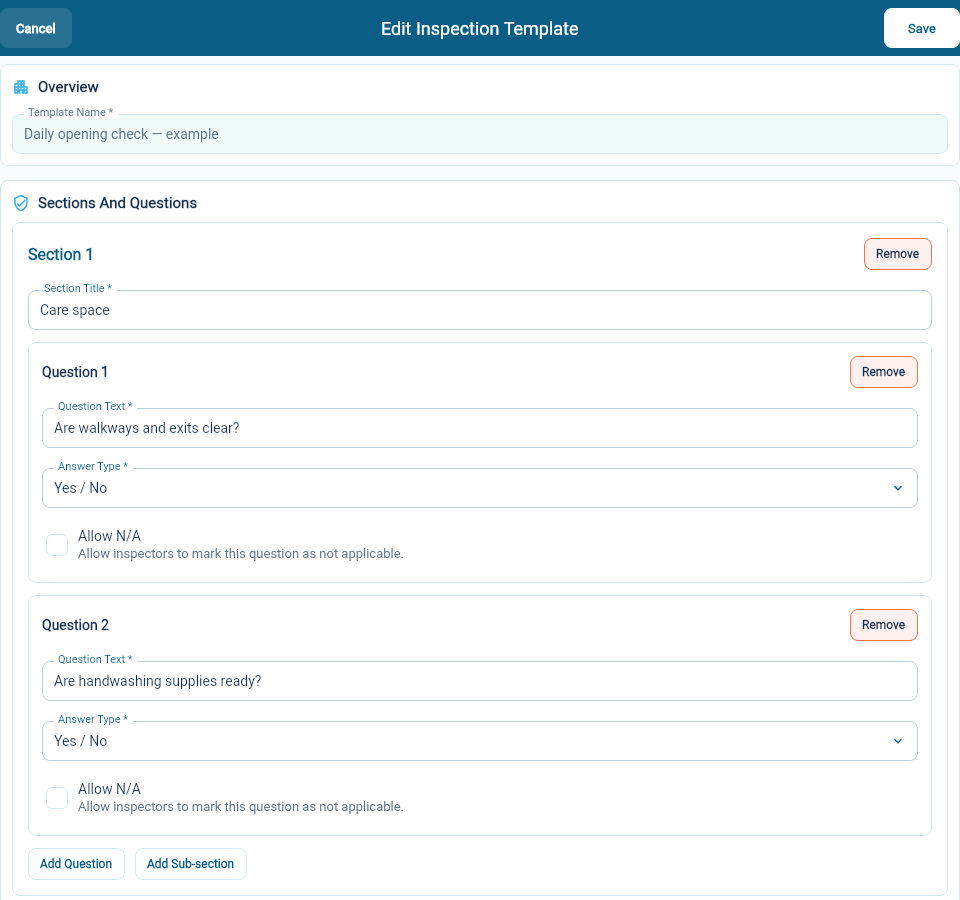
You need permission to manage inspection templates. Write questions that match your program’s actual procedure. The opening checklist pictured here is an example.
Build the checklist
Section titled “Build the checklist”- Open Organization Settings → Site Setup → Inspection Templates.
- Select Create Template.
- Enter a clear Template Name.
- Add a Section Title, such as “Care space”.
- Enter each Question Text and choose its Answer Type.
- Use Add Question for another question, Add Sub-section to group related checks, or Add Section for another part of the checklist.
- Select Create and review the saved template.
Choose useful answer options
Section titled “Choose useful answer options”Use Yes / No for a direct check. A Score question collects a numeric score; make the meaning of the score clear in your question or procedure.
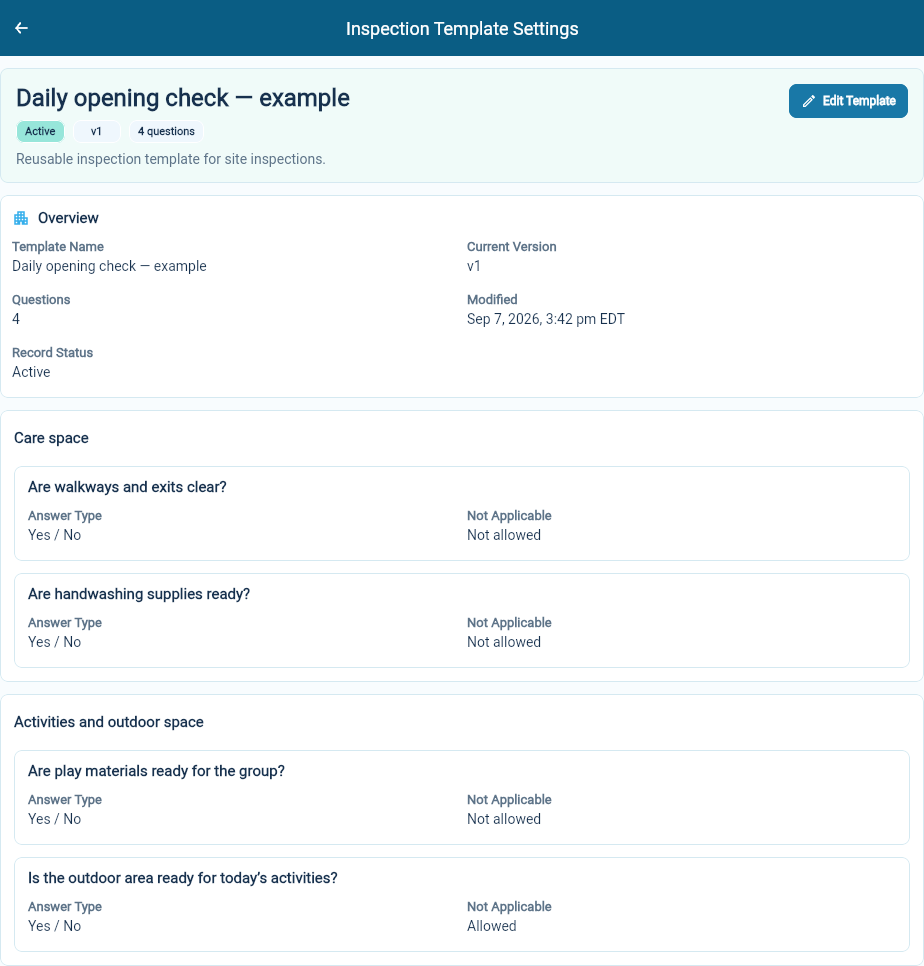
Enable Allow N/A only when “not applicable” is a meaningful answer. For example, your outdoor-space question may need it, while a question about clear exits may not.
Update an existing template
Section titled “Update an existing template”Open the template, select Edit Template, make the changes and select Save Template. Review the new version on the saved record.
An inspection keeps the template version it was started with. Updating the template does not rewrite the questions on an earlier inspection. Check the version beside the template name when comparing older records with your current checklist.
Once the checklist is ready, start a site inspection.