
Review a weekly attendance roster
Use the weekly attendance report when you need to review several days together. It brings the group’s scheduled children, recorded arrivals and departures, and pickup details into one view.
You need access to attendance reports and the children’s attendance records for the site.
Open the week
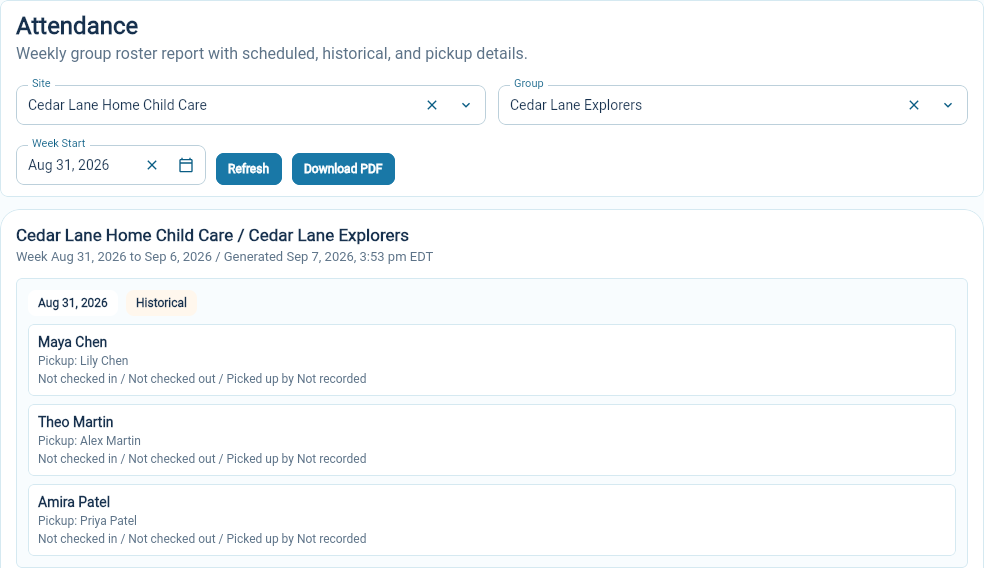
Section titled “Open the week”- Go to Reports → Attendance.
- Choose the Site, then the Group.
- Choose the Monday of the week in Week Start.
- Select Refresh.
- Check the site, group and week dates above the report.
Read the daily entries
Section titled “Read the daily entries”Each day has its own section. A closed day is marked Site closed. Other days list the relevant children and pickup contacts.
Past days are labelled Historical and show the recorded attendance details, one line per visit. A child who left for school and returned in the afternoon has two lines: the morning visit ends with Left for school, the afternoon visit ends with Picked up by. Not checked in or Not checked out identify information that is absent from the attendance record. Do not treat a listed pickup contact as proof that this person collected the child: check Picked up by for the recorded collection.
Future days use the planned roster. Being scheduled for a future day does not mean a child has attended.
Follow up on a gap
Section titled “Follow up on a gap”Use Attendance for the particular group and day when you need to review the daily record. If the planned roster is wrong, check the enrollment’s dated attendance schedule.
After making a correction, return to the report and select Refresh to review the week again.
Related help: record arrivals and departures · find a missing child.