
Assign or replace a Home Operator
Every active home has one Home Operator: the staff member who runs the home and receives its remittance. A staff member becomes a home’s Home Operator by holding a role with Home operation at that home. This guide is for agencies that run home child care.
What being the Home Operator means
Section titled “What being the Home Operator means”- A home has exactly one Home Operator, and an active home needs one. A home stays Closed until it has a Home Operator.
- A staff member can operate only one home at a time.
- The Home Operator is on the home’s team.
- The Home Operator is the home’s payee. When a new Home Operator takes over, remittance for the home goes to them. Site periods already remitted keep the payee recorded for them.
The Home Operator’s permissions come from their role, like anyone else’s. Give the Home Operator role the permissions the operator needs at their home, such as View children and Manage current and future attendance.
Who can be chosen
Section titled “Who can be chosen”The Home Operator must be an active Independent Contractor who does not already operate another home. When you search for a Home Operator, staff who cannot be chosen still appear, with the reason under their name:
- Not an Independent Contractor
- Employment not Active
- Operates another home
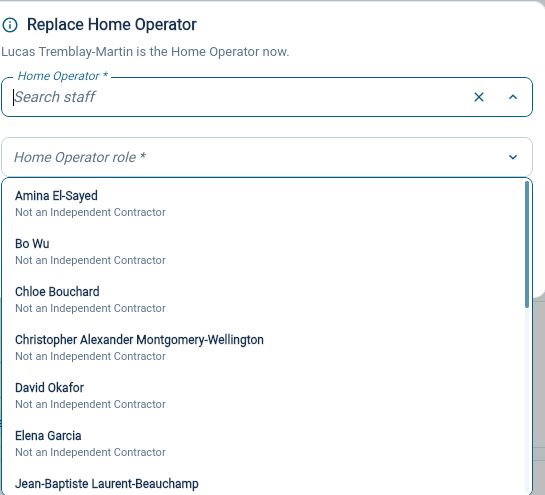
If you choose one of them anyway, saving is refused with an explanation. Update the person’s staff record first, or choose someone else.
Before you begin
Section titled “Before you begin”You need the Manage access roles and View staff permissions to assign or replace a Home Operator, and View site staff at the home to see its Home Operator section. At least one role must have Home operation turned on; see Create and edit a role.
Choose the Home Operator when creating a home
Section titled “Choose the Home Operator when creating a home”A home’s care model is chosen when the Site is created and cannot be changed later.
-
Open Organization Settings → Site Setup → Sites and choose Create Site.
-
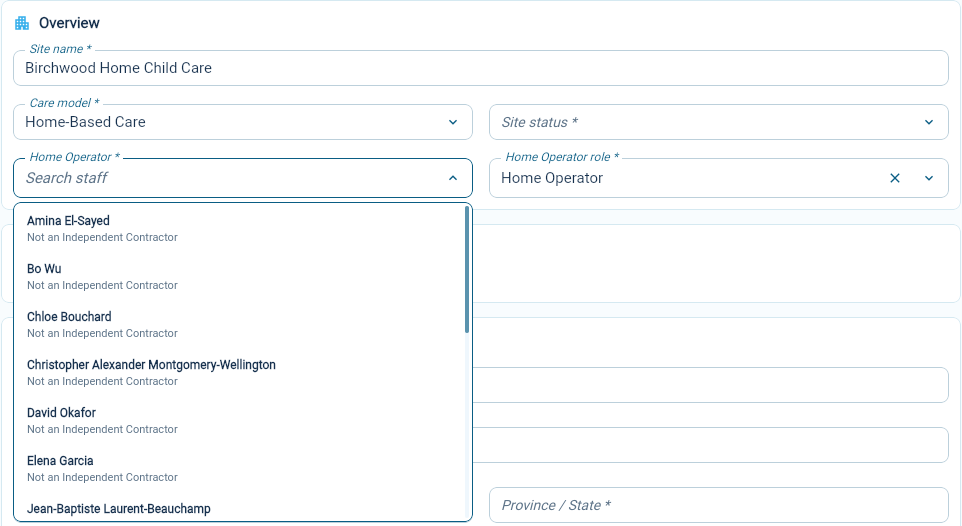
Choose Home-Based Care as the Care model.
-
In Home Operator, search for and select the staff member.
-
In Home Operator role, select the role with home operation to assign.
-
Complete the rest of the Site and choose Create.
The home opens once its Home Operator is assigned. If the Home Operator cannot be assigned, the home is still created, but Closed. Its Home Operator field in Site Settings explains why and says that no Home Operator is assigned. Assign one from the home’s page as described below, then set the home’s status to Open.
Open or restore a home without a Home Operator
Section titled “Open or restore a home without a Home Operator”- Opening: setting a home’s status to Open is refused while it has no Home Operator. Assign one first.
- Restoring: when you restore an archived home that has no Home Operator, AmalynCare asks you to choose one and their role with home operation, as when creating a home. Without one, the home is restored Closed, and you can assign a Home Operator and open it later.
Replace the Home Operator from the home
Section titled “Replace the Home Operator from the home”-
Open Site Operations → Sites and choose the home.
-
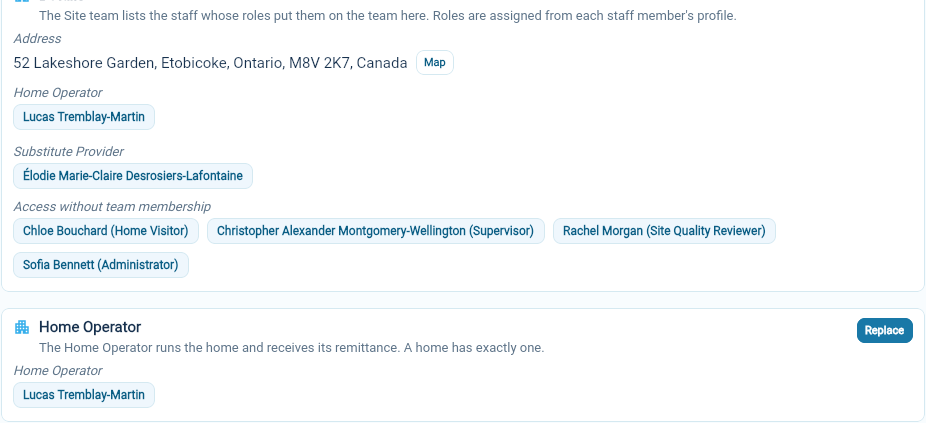
In the Home Operator section, choose Replace. If the home has no Home Operator, the action is Assign.
-
In Home Operator, select the new Home Operator.
-
In Home Operator role, select the role with home operation to give them.
-
Under Previous Home Operator, choose Leaves the home or Stays with another role. If they stay, choose their Role at the home, for example Substitute Provider.
-
Choose Replace (or Assign).
The change takes effect immediately. The new Home Operator appears in the section and on the home’s team, and becomes the home’s payee. A previous Home Operator who stays keeps working at the home through the role you chose.
Replace the Home Operator from a staff profile
Section titled “Replace the Home Operator from a staff profile”You can also start from the staff member who is taking over:
- Open Staff → Staff Directory and select the staff member.
- Choose the pencil beside Roles And Sites, then Add role.
- Select a role with home operation, then choose the Home.
- Choose Save Roles and Sites.
If the home already has a Home Operator, the staff member replaces them and the previous Home Operator leaves the home. To keep the previous Home Operator at the home with another role, use Replace on the home’s page instead.
When a Home Operator leaves
Section titled “When a Home Operator leaves”A Home Operator cannot be removed from their home without a replacement. Before their employment ends, or before their employment type changes from Independent Contractor, assign a new Home Operator to their home. Until then, AmalynCare refuses the change and explains that the home needs a new Home Operator first.
The role page for a role with home operation lists Homes Operated Through This Role, with each Home Operator and the date they started. Its Replace action opens the home’s page.