
Create and edit a role
Create a role for each job in your organization, such as Director, Educator or Accountant. Edit it when the job changes; the change applies to everyone who holds the role. Roles and access explains how the parts of a role work together.
Before you begin
Section titled “Before you begin”You need the Manage access roles permission to create or edit roles. With View access roles you can open roles and read them without changing them.
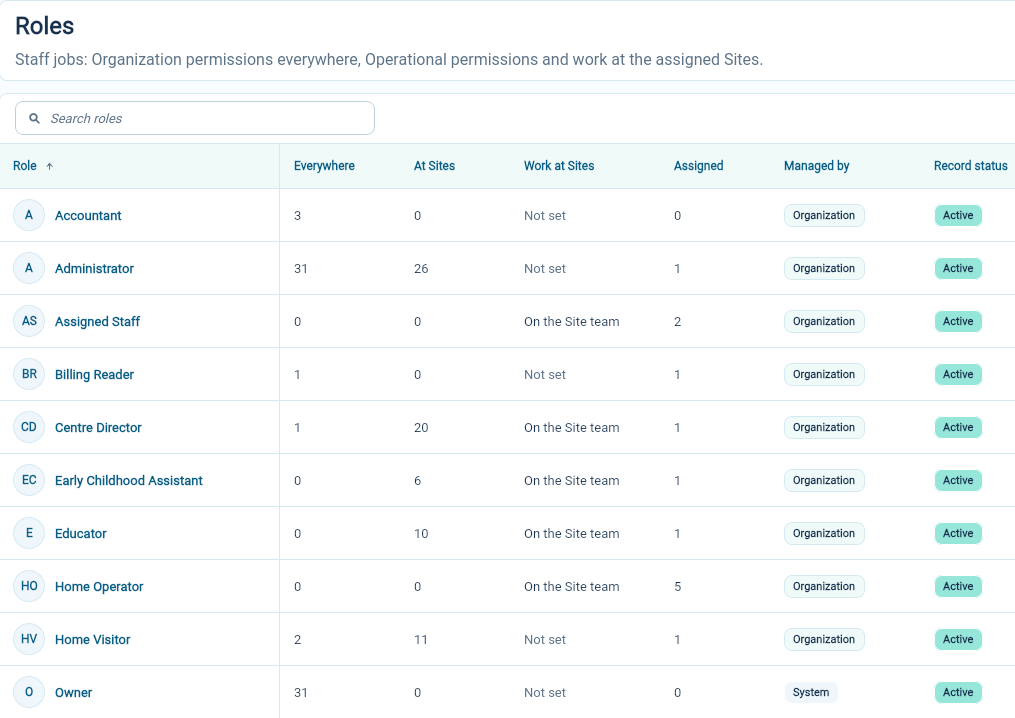
Open Organization Settings → Access → Roles & Permissions. The list shows how many permissions each role has Everywhere and At Sites, whether it is On the Site team, and how many staff members it is Assigned to. Use the Work at Sites filter to find roles on or off the Site team, and Show to include archived roles.
Create a role
Section titled “Create a role”-
Choose New Role.
-
In Role Details, enter a Role name that describes the job. Add a Description if it helps others choose the right role.
-
Under Applies Everywhere, select the Organization permissions the job needs across the whole organization.
-
Under Applies At Assigned Sites, select the Operational permissions the job needs at the Sites where it will be assigned.
-
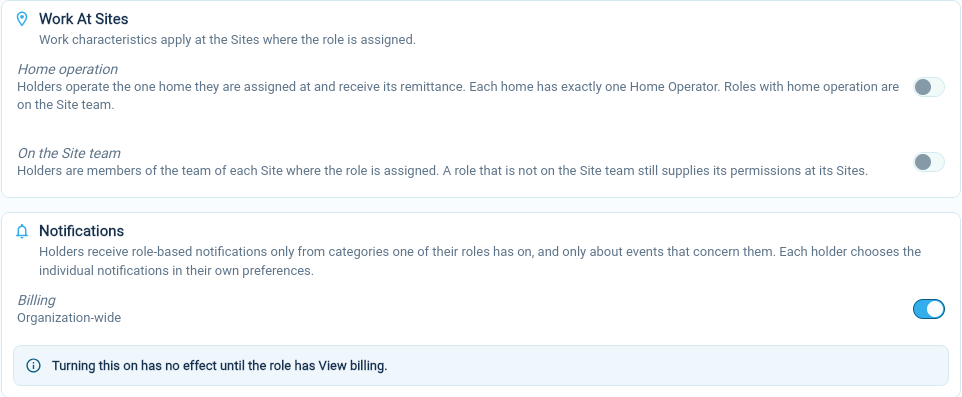
Under Work At Sites, turn on On the Site team if holders work as part of the team at their Sites. Turn on Home operation only for the role that makes someone a home’s Home Operator.
-
Under Notifications, turn on the notification categories holders should receive. See Turn on notification categories for a role.
-
Choose Create.
AmalynCare confirms Role created. You can now assign the role to staff.
Choosing permissions
Section titled “Choosing permissions”Permissions are grouped by area, and each one shows a short description. Choose only what the job needs. Viewing and managing are separate permissions, so someone who checks attendance may need View attendance but not Manage current and future attendance.
Some permissions need another permission in the same role. Selecting one also selects what it needs, and the checklist says Also selects before you choose it. If you clear a permission that others depend on, AmalynCare asks Remove required permission? and lists the permissions that will be removed with it.
The Sites chosen in an assignment never limit Organization permissions. If a job should see billing only for some Sites, that is not possible with an Organization permission such as View billing: it applies to the whole organization.
Edit a role
Section titled “Edit a role”- Open the role from the list.
- Choose the pencil beside the section you want to change: Role Details, Applies Everywhere, Applies At Assigned Sites, Work At Sites or Notifications.
- Make the change and choose Save.
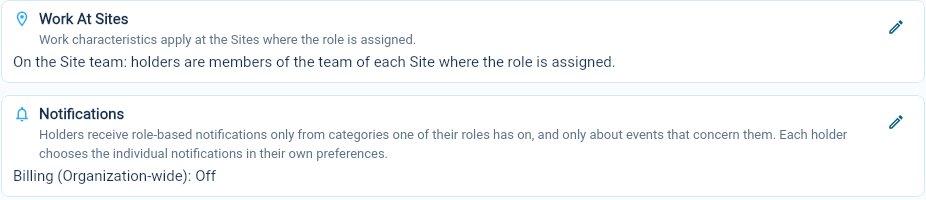
You can also choose Edit from the role’s row in the list to change every section on one page, then choose Save.
The saved change applies straight away to everyone who holds the role, at the Sites of their existing assignments. For example, adding Manage feed lets every Educator manage the Feed at the Sites where they are assigned. You do not need to assign the role again.
When a role’s permissions change, the people who hold it are signed out and receive the new permissions when they sign in again.
Changes that can be refused
Section titled “Changes that can be refused”- Home operation cannot be turned off while homes are operated through the role. Give each of those homes a Home Operator through another role with home operation first. See Assign or replace a Home Operator.
- Turning Home operation on for a role that is already assigned works only when every holder is assigned at exactly one open home, no other holder of the role is assigned at the same home, the home has no Home Operator yet, and the holder can operate it: an active Independent Contractor who does not operate another home.
- A role with home operation is always on the Site team, so On the Site team cannot be turned off while Home operation is on.
Turning On the Site team on is allowed even when some holders have the role with No Sites. Those holders join no team until their assignment has Sites.
When a change to Home operation is refused, the role stays as it was. AmalynCare lists every problem at once: each staff member, the Site involved and the reasons, such as “another holder of this role is assigned at the same home” or “this home already has a Home Operator”. If you changed other sections on the same edit page, those changes are not saved either.
Fix each item in the list, for example by changing a holder’s Sites on their staff profile or giving a home another Home Operator, then save the role again.
Homes operated through a role
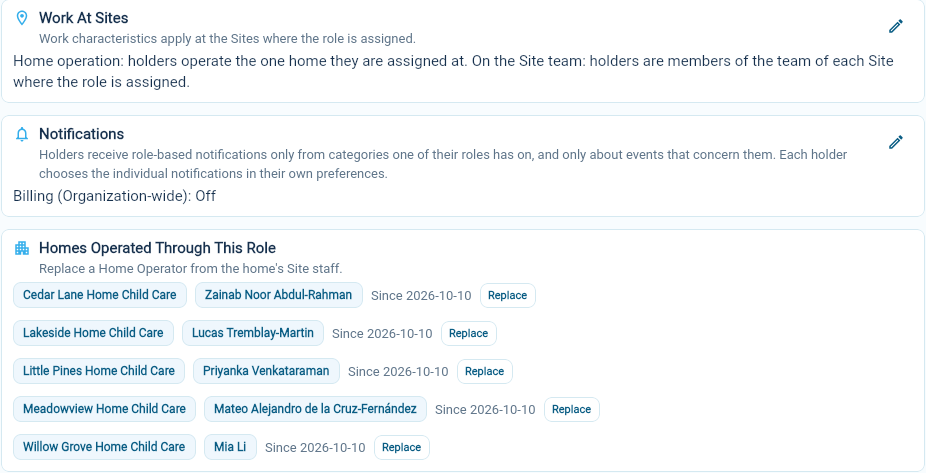
Section titled “Homes operated through a role”A role with home operation shows Homes Operated Through This Role. Each row names the home, its Home Operator and the date they started. Replace opens the home’s page, where you can choose a new Home Operator.
The Owner role
Section titled “The Owner role”The Owner role is marked System managed. Its page explains that it follows the organization’s Owners and cannot be edited. Manage Owners on the Owners page.