
Check which supplies are running low
Use Low Stock to see recorded stock quantities below the minimum set on each item. It gives you a practical list to review before replenishing supplies.
The figures depend on your saved inventory movements. Keep receipts, usage and count corrections up to date so the list reflects what your team has on hand.
Review low stock
Section titled “Review low stock”- Go to Inventory → Low Stock.
- Select Refresh to load the current list.
- Use Location to focus on a particular stock location, or leave All locations selected.
- Compare Quantity with Minimum for each item. Check the location and Updated date too.
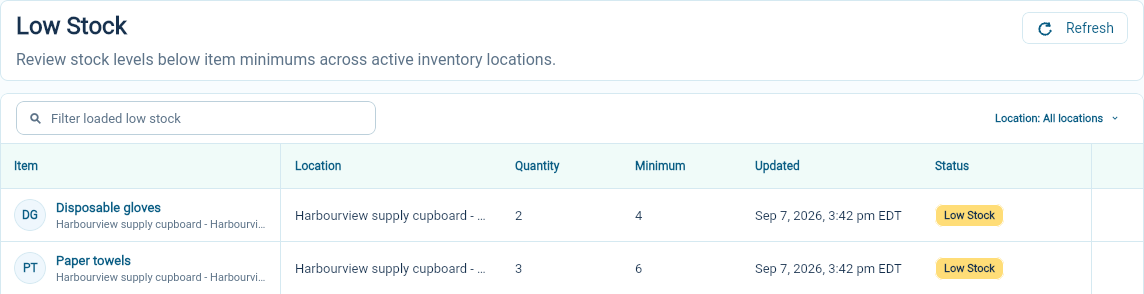
In this example, paper towels are below the minimum because the cupboard has three packs and the item minimum is six. Gloves are also low, with two boxes against a minimum of four. These are example quantities and thresholds.
Filter loaded low stock narrows the rows already loaded in the view.
Follow up on an item
Section titled “Follow up on an item”Check the physical count and recent movements if the quantity looks wrong. When more supplies arrive, record an inbound movement and refresh the low-stock list.
If the threshold no longer suits your program, open the item through Inventory → Items, edit Item Details, change Minimum stock and save. Set the minimum in the same unit used to count that item.
If an expected item is absent
Section titled “If an expected item is absent”Check the location filter, the item’s minimum and whether a quantity has been recorded for that location. The list reviews recorded stock levels; creating an item alone does not establish its opening quantity.
For the setup steps, see items and stock locations.